








How to Sign a Dotloop Document: A Step-by-Step Guide for Agents & Clients
Navigating real estate paperwork can feel overwhelming, but electronic signature platforms like Dotloop are designed to make it simpler. Understanding exactly how to sign a Dotloop document is a critical skill for real estate agents, buyers, and sellers to keep transactions moving forward efficiently and securely. Whether you're a client receiving a purchase agreement for the first time or an agent preparing documents for signature, the process is straightforward once you know the steps. This guide provides a complete walkthrough for everyone involved in a transaction.
We will cover everything from accessing your documents via email to adopting your unique electronic signature and troubleshooting common issues that might arise. Our goal is to demystify the dotloop document signing process, ensuring you can sign with confidence and keep your real estate deals on track without the hassle of printing, scanning, or faxing.
What You'll Learn
- The Client Signing Process: A clear, step-by-step walkthrough for clients who receive a document and need to sign it, starting from the email notification.
- Signing for Agents: How real estate professionals can sign documents assigned to them directly within the Dotloop platform.
- Creating Your E-Signature: The different methods you can use to adopt a legally binding electronic signature in Dotloop, including typing, drawing, or uploading.
- Troubleshooting Common Problems: Solutions for frequent issues, such as not receiving the signing email or being unable to click the signature field.
- In-Person Signing: How to use Dotloop's feature to facilitate signatures when your client is with you in person.
What is Dotloop? A Quick Introduction for New Users
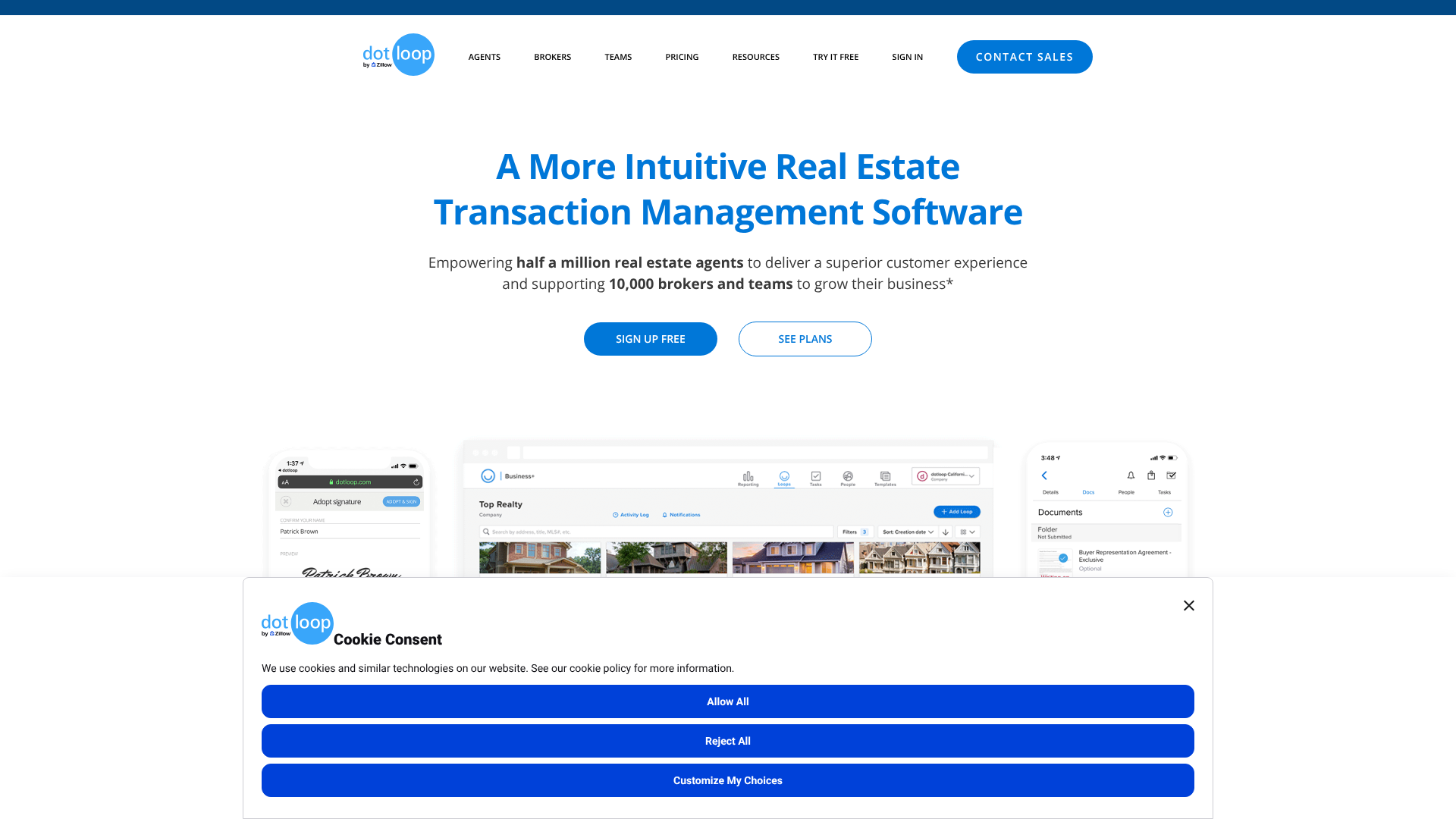
Dotloop is a comprehensive transaction management platform built specifically for the real estate industry. It’s more than just a tool for electronic signatures; it's an all-in-one system where agents, clients, and service providers can collaborate on a deal from start to finish. The core of the platform is the "loop," which acts as a central digital workspace for a specific property transaction. Inside a loop, you can manage documents, track tasks, communicate with all parties, and ensure compliance.
For agents, Dotloop streamlines workflows by providing easy access to real estate forms, allowing for seamless document editing, and automating the signature collection process. This eliminates the need for paper files, reduces errors, and speeds up the entire transaction timeline. The platform's design focuses on collaboration, giving everyone involved—from the buyer's agent to the transaction coordinator—the appropriate level of visibility and access.
For clients, Dotloop offers a simple and secure way to review and sign important documents from any device with an internet connection. Instead of dealing with stacks of paper, clients receive an email notification, click a link, and are guided through the signing process. This convenience is a major advantage in today's fast-paced market, allowing deals to progress without delays caused by physical document handling.
Getting Started: Creating Your Dotloop Account

One of the most common questions from new users is whether they need to create a Dotloop account to sign documents. The answer depends on your role in the transaction. For clients (buyers, sellers, tenants), you typically do not need to create an account beforehand. You can complete the entire dotloop document signing process without a password or login.



When an agent shares a document with you for signature, you'll receive an email. Clicking the link in that email gives you direct access to sign. After you finish signing, Dotloop will prompt you to create a free account to store and access your signed documents later. While optional, creating this account is highly recommended as it provides a secure, centralized location to find all your transaction paperwork.
For real estate agents, brokers, and transaction coordinators, a Dotloop account is essential. This is your command center for creating loops, preparing documents, and managing your transactions. To get started, you can visit the Dotloop website and sign up for a plan that fits your needs, such as Dotloop for Agents or Dotloop for Teams. The registration process involves providing your professional information and setting up a secure password.
Once your account is active, you can begin creating loops and sharing documents with clients immediately.
A Tour of the Dotloop Interface: Finding Your Way Around
For agents using the platform daily, understanding the Dotloop interface is key to efficiency. When you first log in, you're greeted by the main dashboard, which provides a high-level overview of your active transactions, or "loops." A loop is the digital container for a single real estate deal, holding all its documents, contacts, and task lists.
The primary sections you'll interact with are:
- Loops: This is the main page where all your transactions are listed. You can search, sort, and filter your loops to quickly find the one you need. Clicking on a loop takes you into that transaction's dedicated workspace.
- People: This section acts as your address book within Dotloop. You can add contacts here, such as clients, lenders, and other agents, so you can easily add them to loops without re-typing their information.
- Tasks: Dotloop includes task management features that allow you to create checklists for your transactions. This helps ensure you don't miss critical deadlines for things like inspections, appraisals, and financing contingencies.
- Templates: This is a powerful feature for agents. You can create document templates for different types of transactions (e.g., a buyer packet or a listing packet). This saves a massive amount of time, as you don't have to add and prepare the same set of documents for every new client.
While clients don't interact with this full interface, understanding its structure helps agents manage the process effectively. Knowing how to navigate from the main dashboard to a specific document within a loop is the first step in preparing and sending files for signature.
How to Access Documents Shared with You in Dotloop

Accessing documents is a slightly different process for clients and agents. Dotloop has designed the client experience to be as simple as possible, removing unnecessary barriers like logins and complex navigation.
For Clients:
When an agent needs your signature, you will receive an email from Dotloop on their behalf. The subject line will typically read "ACTION NEEDED" followed by the agent's name and the document title. This email is your gateway to the document.
Inside the email, you'll find a prominent blue button that says "View Document." You do not need to log in or have a Dotloop account to proceed. Simply clicking this button will open the document directly in your web browser, ready for you to review and sign. It's crucial to use the email address your agent has on file, and if you don't see the email, check your spam or junk folder first before contacting your agent.
For Agents:
As an agent, you access documents from within your Dotloop account. First, log in and navigate to your main "Loops" dashboard. Find and click on the specific loop (transaction) that contains the document you need to access. Once inside the loop, you'll see a list of all the documents associated with that transaction.
Clicking on any document name in the list will open it for viewing, editing, or signing.
Understanding Document Types and Permissions in Dotloop
Not all documents in Dotloop behave the same way, and understanding the differences is key to a smooth signing process. The two main types of documents you'll encounter are interactive forms and flat PDFs. Knowing their properties and the permissions associated with them can help you troubleshoot issues before they happen.
Interactive Forms vs. Flat PDFs:
-
Interactive Forms: These are official documents, often sourced from your local real estate association or brokerage. They come pre-formatted with fields for text, signatures, initials, and dates. When you use an interactive form, Dotloop automatically knows where information and signatures need to go, making the process fast and accurate.
-
Flat PDFs: A flat PDF is a standard document, like one you might scan and upload. It has no built-in fields. To make a flat PDF signable in Dotloop, an agent must manually add signature, initial, text, and date fields. If a field is missing, you won't be able to sign in that spot.
Document Permissions:
Permissions control what each person in a loop can do with a document. An agent sets these permissions when they share a file. If you're unable to sign, it's often due to the permission level you've been assigned.
- View Only: This is the most restrictive permission. As the name implies, you can open and read the document, but you cannot make any changes, fill out fields, or sign it.
- Can Fill & Sign: This is the most common permission level for clients. It allows you to fill in any fields assigned to you (like text boxes) and add your signature and initials where required.
- Can Edit in Private: This permission is typically reserved for agents and collaborators. It allows a user to make changes to the document that are not visible to others until the changes are saved and shared.
- Can Sign: This is a legacy permission similar to "Can Fill & Sign" and allows for signing.
If you're a client and can't sign a document, the most likely reason is that the agent has either set your permission to "View Only" or has not yet assigned the signature fields to you. A quick message to the agent can usually resolve this.
How to Sign a Dotloop Document: A Step-by-Step Guide
The core of the Dotloop experience is the signing process itself. Whether you're a client signing a contract or an agent countersigning, the steps are intuitive. Here’s a detailed breakdown for each scenario.
For Clients: Signing a Document Sent to You
This process is designed to be as frictionless as possible. You don't need an account, and Dotloop guides you through every step.
- Open the Email: Find the email from your agent via Dotloop. The subject line will say "ACTION NEEDED." Click the blue "View Document" button.
- Start the Signing Process: Once the document loads, you'll see a flashing blue button in the top-right corner that says "START SIGNING." Click this to begin. Dotloop will automatically scroll you to the first field that requires your attention.
- Click the First Signature Field: The first signature or initial field assigned to you will be highlighted. Click directly on the "Sign Here" or "Initial Here" box.
- Adopt Your Signature: A pop-up window will appear, asking you to confirm your name and initials. This is where you create your legally binding electronic signature. You have a few options:
- Type Your Name: Simply type your full name, and Dotloop will convert it into a cursive font. This is the most common method.
- Draw Your Signature: If you're on a touchscreen device or using a mouse, you can choose to draw your signature for a more personalized look.
- Upload a Signature: If you have an image of your signature saved, you can upload it.
- Adopt and Sign: After you've typed or drawn your signature, click the blue "Adopt and Sign" button. This action places your signature in the first field and automatically takes you to the next required field.
- Complete All Fields: Continue this process for all remaining signature and initial fields. Dotloop will guide you through the document sequentially.
- Finish Signing: Once you've completed all the required fields, a button in the top-right corner will change to "FINISH SIGNING." Click this to finalize your signature and notify the agent that you're done. You'll then be prompted to create an optional free account to save your documents.
For Agents: Signing Your Own Documents
Agents often need to sign documents as well, such as listing agreements or disclosures. The process is slightly different since you are already inside your Dotloop account.
- Navigate to the Document: Go to the correct loop and open the document you need to sign.
- Ensure the Field is Assigned to You: Before you can sign, the signature field must be assigned to you. Click on the signature field. A menu will appear. In the "Assign to" dropdown, make sure your name ("Me") is selected.
- Click to Sign: Click on the signature or initial field again. An option to "Sign Now" will appear. Click it.
- Adopt Your Signature: If this is your first time signing, you'll be asked to adopt your signature and initials, just like the client process. If you've signed before, Dotloop will remember your signature.
- Save Your Work: After signing, your signature will appear in the field. Unlike the client process, there isn't a "Finish Signing" button. Instead, you must click the "Save" button at the top right to ensure your signature is saved to the document. If you are done with all your changes, you can also click "Save and Share" to notify the next person.
Pro Tip: As an agent, you can pre-set your signature and initials in your account settings. Go to "My Account" > "Profiles" and edit your profile to draw or type your signature. This saves you from having to adopt it every time you sign a new document.
Hosting an In-Person Signing Session
What if your client is with you in your office and doesn't have easy access to their email? Dotloop has a feature for this called "Host In-Person Signing."
- Open the Document: From your account, navigate to the document that needs to be signed.
- Select Host In-Person Signing: At the top of the document view, click the "MORE" dropdown menu. Select "Host In-Person Signing."
- Choose the Signer: A window will pop up asking you to select which person you are hosting the signing for. Choose your client's name from the list and click "Start Signing."
- Hand Over the Device: The screen will then switch to the client's signing experience. You can hand your laptop, tablet, or phone to your client. They will be guided through the signing process just as if they had opened it from their email. Once they click "Finish Signing," the session ends, and control returns to you.
The Power of Electronic Signatures in Dotloop
When you sign a Dotloop document, you're doing more than just placing a digital image of your name on a page. You are creating a legally binding electronic signature that is secure, verifiable, and compliant with federal and state laws, including the U.S. Electronic Signatures in Global and National Commerce (ESIGN) Act and the Uniform Electronic Transactions Act (UETA).
Dotloop ensures the integrity of every signature through a comprehensive audit trail. Once a document is fully signed, Dotloop attaches a detailed Signature Verification Certificate. This certificate is a crucial part of the document's legal standing and provides a complete history of the signing events. You can view this certificate by opening the signed document and selecting "View History" from the "MORE" menu.
The certificate includes critical information that validates the signature, such as:
- The full name of each person who signed.
- The email address associated with each signer.
- The IP address of the device used for signing.
- A precise timestamp (date and time) for every action taken on the document, including viewing and signing.
This detailed tracking provides a higher level of security and verifiability than traditional wet-ink signatures. It creates a clear, indisputable record of who signed, when they signed, and where they signed from, which is essential for maintaining compliance and resolving any potential disputes down the line.
Best Practices for a Smooth Dotloop Document Signing Experience
While Dotloop is designed to be user-friendly, following a few best practices can prevent common hiccups and ensure the dotloop document signing process is smooth for everyone involved.
For Agents:
-
Double-Check Field Assignments: Before you share a document, always review it to ensure every signature, initial, and text field is correctly assigned to the right person. An unassigned field is the most common reason a client can't sign. * Use Clear Document Names: Name your documents logically (e.g., "Purchase Agreement – 123 Main St"). This helps clients and other parties easily identify what they are signing.
-
Communicate with Your Clients: Send a brief email or text message to your clients letting them know you've sent a document for their signature. Advise them to look for an email from Dotloop and to check their spam folder. * Set the Correct Signing Order: If documents need to be signed in a specific sequence (e.g., buyer signs first, then seller), use Dotloop's "Set Signing Order" feature. This prevents people from signing out of turn.
For Clients:
-
Use a Reliable Email Address: Provide your agent with an email address that you check regularly. All notifications and documents will be sent there. * Read Before You Sign: Always take the time to read through the document carefully before you begin the signing process. While Dotloop guides you to the signature spots, it's your responsibility to understand what you are signing.
-
Use a Modern Web Browser: For the best experience, use an up-to-date web browser like Google Chrome, Firefox, or Safari. Outdated browsers can sometimes cause display or functionality issues. * Ensure a Stable Internet Connection: A poor internet connection can interrupt the signing process. Make sure you are connected to a stable Wi-Fi or cellular network before you begin.
Troubleshooting Common Dotloop Signing Issues
Even with the best preparation, you might occasionally run into an issue. Here are solutions to some of the most common problems users face when trying to sign documents in Dotloop.
Problem: "I can't click the signature field to sign."
This is the most frequent issue and usually has a simple cause. Here's what to check:
-
Field Assignment: The signature field is likely assigned to someone else. You can only sign fields that are specifically assigned to you. Contact the agent who sent the document and ask them to verify the field assignment.
-
Permissions: You may have "View Only" permission. The agent will need to re-share the document with "Can Fill & Sign" permissions. * Document Status: The document might be a flattened, signed copy. Once a document is finalized, it can no longer be edited or signed.
Problem: "I never received the email to sign the document."
- Check Your Spam/Junk Folder: This is the first place to look. Emails from automated systems like Dotloop are sometimes flagged as spam. * Confirm Your Email Address: Double-check with the agent to ensure they have your correct email address with no typos. * Firewall Issues: In rare cases, a corporate or personal firewall may block the email.
Try checking from a different network or device.
Problem: "The 'Start Signing' button is missing or grayed out."
- You've Already Signed: If you previously opened and completed the signing process, the button will not reappear. You can check the document's history to confirm your signature.
- Sequential Signing Order: If the agent has set a signing order, it may not be your turn to sign yet. The button will only become active once the person before you in the sequence has finished signing.
Pro Tip: If you're a client and run into any technical issue, your first point of contact should always be the agent or transaction coordinator who sent you the document. They have control over the document's settings and can quickly fix permissions or assignment errors.
FAQ: Answering Your Dotloop Signing Questions
Here are answers to some frequently asked questions about the Dotloop signing process.
How do I electronically sign a document?
To electronically sign a document in Dotloop, you'll first receive an email with a link to view the document. After clicking the link and starting the signing process, you will be prompted to click on a signature field. A window will appear where you can adopt your signature by either typing your name, drawing it with a mouse or finger, or uploading an image of it. Once adopted, this electronic signature is applied to all required fields and is legally binding.
Can I just type my name for an electronic signature?
Yes, you absolutely can. Under the U.S. ESIGN Act, an electronic signature can be any electronic sound, symbol, or process attached to a contract or record. Typing your name and clicking a button to affirm your intent to sign is a valid and legally enforceable method of creating an electronic signature.
Dotloop's system is designed to meet these legal standards.
Why can't I sign into Dotloop?
If you're a client, you don't need to sign in to sign a document; just use the email link. If you're an agent and can't log in, first try resetting your password using the "Forgot Password?" link on the login page. Also, ensure you are using the exact email address associated with your account, as a small typo will prevent access. If problems persist, it could be a browser cache issue; try clearing your cache or using a different browser.
What is the Dotloop signature?
A Dotloop signature is a secure, legally binding electronic signature used to execute real estate documents. It is more than just an image of a signature; it is backed by a detailed audit trail and a verification certificate that records the signer's identity (name and email), IP address, and a precise timestamp for every action. This ensures the signature is verifiable and compliant with e-signature laws.
What is better, DocuSign or Dotloop?
Both Dotloop and DocuSign are leaders in the e-signature space, but they serve slightly different primary purposes. DocuSign is largely focused on being a powerful, versatile e-signature tool that can be used across many industries. Dotloop, on the other hand, is a comprehensive real estate transaction management platform where e-signatures are one integrated feature of a larger system that includes form libraries, compliance workflows, and task management. For real estate professionals who want an all-in-one solution, Dotloop is often the preferred choice.
How do I sign a document that was emailed to me?
When you receive an email from Dotloop, open it and click the "View Document" button. This will open the document in your browser. Click the "Start Signing" button, and the system will guide you to each field you need to complete. Click on the first signature field, adopt your signature by typing or drawing it, and click "Adopt and Sign." Repeat for all fields and click "Finish Signing" when you are done.
Final Thoughts
Mastering how to sign a Dotloop document is an essential part of modern real estate. The platform provides a secure and efficient alternative to paper-based processes, allowing deals to move forward faster and with greater accuracy. By understanding the simple steps for both clients and agents, you can navigate any transaction with confidence.
Remember to always check field assignments, communicate clearly with all parties, and use the troubleshooting tips in this guide to resolve any issues that may arise. The dotloop document signing system is designed to be intuitive, and with a little practice, it will become a seamless part of your real estate workflow.
If you're a real estate professional looking to streamline your transactions from contract to close, exploring a comprehensive platform like Dotloop can significantly improve your efficiency and client satisfaction.