









How to Sign a Dotloop Document: A Simple Step-by-Step Guide for Clients
Receiving a request to sign a document through Dotloop can feel like one more hurdle in your real estate journey, but it's designed to be a simple and secure process. If you're wondering exactly how to sign a Dotloop document, you've come to the right place. This guide will walk you through every step, from opening the email to finalizing your signature, ensuring you can complete your paperwork confidently and without any technical headaches.
Whether you're on a computer, tablet, or phone, the process is straightforward. We'll cover what to expect, how to handle common scenarios, and answer the most frequent questions people have about the Dotloop signing experience. By the end, you'll be able to handle any document that comes your way.
What You'll Learn
- The Core Signing Process: The exact steps to follow, from receiving the email to clicking the final "Finish Signing" button.
- No Account Necessary: You do not need to create a Dotloop account or remember a password to sign documents sent to you as a client.
- Signing on Any Device: Instructions are provided for signing on a desktop computer as well as mobile devices like an iPhone or Android smartphone.
- Troubleshooting Common Issues: Find solutions for common problems, such as not receiving the email or what to do if your name is misspelled.
What is Dotloop and Why is it Used for Document Signing?
Dotloop is a comprehensive real estate transaction management platform designed to streamline the entire process of buying or selling a property. While it does many things, its most common use from a client's perspective is for electronic signatures, or eSignatures. Instead of printing stacks of paper, signing them by hand, and then scanning or faxing them back, Dotloop allows all parties to sign legally binding documents online.
Real estate agents and brokers use Dotloop to manage contracts, disclosures, and agreements in one central place. When your agent sends you a purchase agreement or a counter-offer to sign, they are using Dotloop to create a secure, digital version of that paperwork. This method is not only faster and more convenient but also creates a clear digital audit trail, recording who signed what and when.
The platform's focus on real estate means it's built with the specific needs of the industry in mind. It integrates standard real estate forms and ensures compliance with legal eSignature standards, providing peace of mind for everyone involved in the transaction. For you as the client, it simplifies the often-daunting task of handling paperwork.
The Core Features of Dotloop's eSignature Platform
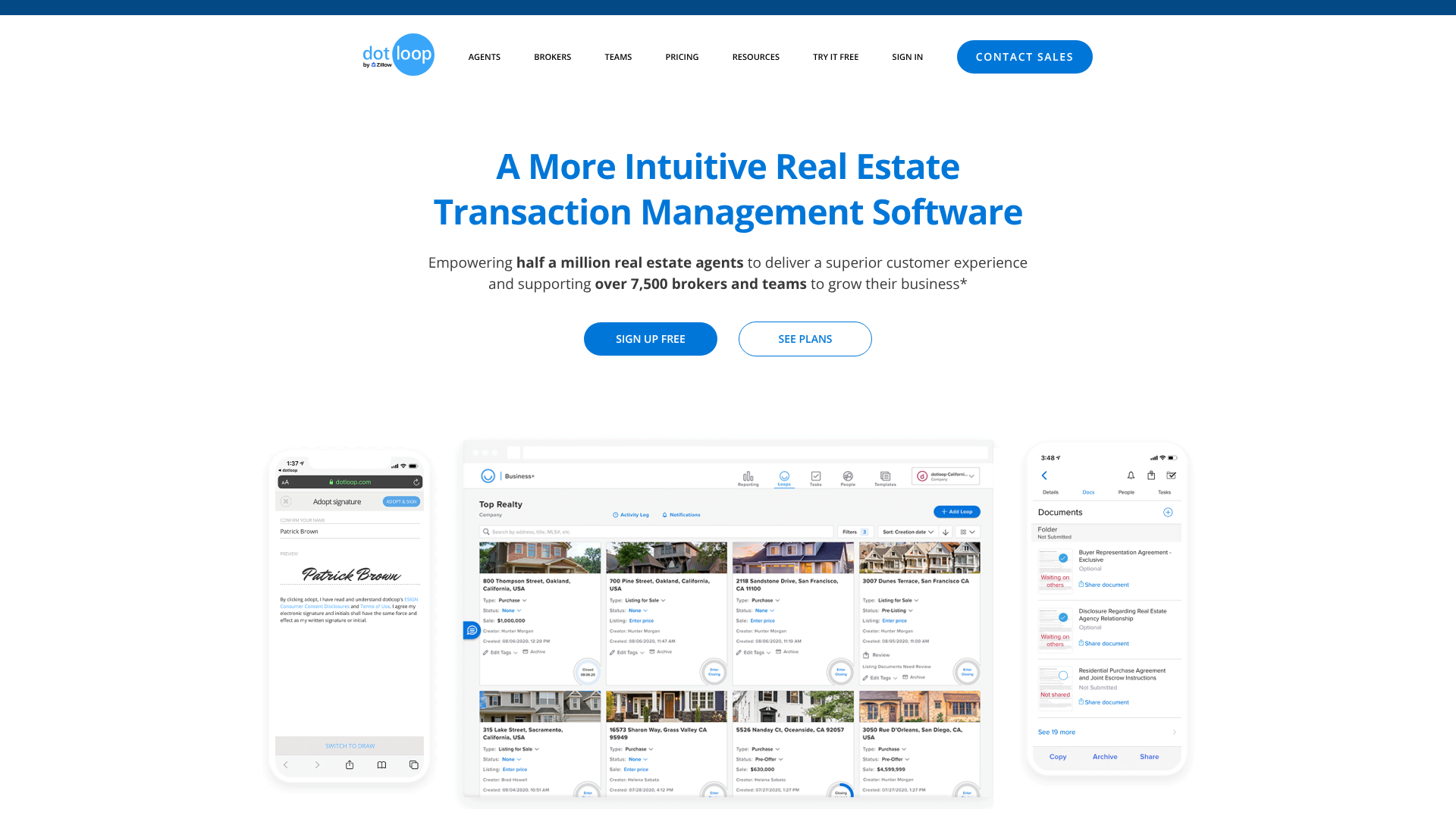
Understanding the features behind the dotloop document signing process can help you appreciate the security and efficiency it offers. It’s more than just a digital pen; it’s a system built to handle sensitive transactions with precision and legal integrity. These features work together to make the process smooth for both you and your agent.
Key features include:



- Legally Binding eSignatures: Dotloop's signatures comply with the U.S. Electronic Signatures in Global and National Commerce (ESIGN) Act and the Uniform Electronic Transactions Act (UETA). This ensures that your digital signature carries the same legal weight as a handwritten one.
- Detailed Audit Trail: Every action taken on a document is tracked and time-stamped. This includes when the document was sent, viewed, and signed. This transparent history, called an audit trail, can be crucial for verification and legal purposes, providing a complete record of the document's lifecycle.
- Secure Document Storage: Once signed, documents are stored securely in a digital folder, or "loop," associated with your transaction. Both you and your agent can access these completed documents at any time, eliminating the risk of losing important papers.
- Guided Signing Experience: The platform is designed to be intuitive. When you open a document, Dotloop guides you to each field that requires your attention with a flashing "Start Signing" button. This prevents you from accidentally missing a signature or initial field, which could delay the transaction.
- Cross-Device Compatibility: You can complete the signing dotloop documents process from virtually any device with an internet connection. Whether you prefer a desktop computer, a tablet, or your smartphone, the interface adapts to your screen for a seamless experience.

How to Sign a Dotloop Document: A Step-by-Step Guide for Clients
Following the steps for signing a document in Dotloop is simple. The system is designed to guide you through the process, but knowing what to expect can make it even smoother. Here is a detailed breakdown of each step you'll take.
Before You Begin: What You'll Need
To ensure a hassle-free experience, make sure you have two things ready before you start. First, you need access to the email account where your real estate agent sent the signing request. Second, you need a stable internet connection on the device you plan to use.
That's it. You don't need to download any special software, and as mentioned before, you don't need to create a Dotloop account. The entire process happens within your web browser.
Step 1: Locating and Opening the Dotloop Email
Your journey begins in your email inbox. Look for an email from your agent via Dotloop. The subject line will typically say something like "ACTION NEEDED – [Your Agent's Name] has shared a document with you."
Open this email. Inside, you'll see a brief message and a large, prominent button labeled "VIEW DOCUMENT." Click this button to proceed. This link is unique to you and will take you directly to the documents that require your signature.
Step 2: Starting the Signing Process
After clicking the button in the email, a new tab will open in your web browser, displaying the document. At the top right of your screen, you will see a flashing blue button that says "START SIGNING." This is your primary call to action.
Clicking this button will automatically scroll the page down to the very first field assigned to you. This guided navigation ensures you don't have to hunt for the places you need to sign or initial, which is especially helpful in long, multi-page contracts.
Step 3: Adopting Your Signature and Initials
The first time you click on a signature or initial field, a pop-up window will appear titled "Adopt your signature." Dotloop will automatically generate a typed version of your name and initials based on the information your agent entered.
You have two options here. You can accept the pre-filled, typed signature by clicking the blue "ADOPT AND SIGN" button. Alternatively, if you prefer to draw your signature, you can click "Draw Signature" and use your mouse (or finger on a touchscreen) to create a custom signature. Once you adopt a signature style, Dotloop will use it for all subsequent fields in that document.
Pro Tip: If your name is misspelled in the "Adopt your signature" window, you can correct it here. Simply type your correct name and initials into the fields before clicking "ADOPT AND SIGN." This change will apply to all signatures in the document.
Step 4: Navigating and Completing All Required Fields
After you adopt your signature and apply it to the first field, Dotloop will automatically guide you to the next required field. You just need to keep clicking on the highlighted signature, initial, or text boxes. The system will scroll for you and point you exactly where you need to go next.
It is critical that you click every single field assigned to you. If you manually scroll through the document and miss one, the process won't be complete. Rely on the system's guidance to ensure every required spot is filled in.
Step 5: Finalizing and Finishing the Signature Process
Once you have clicked on the last required field, the button at the top right of the screen will change from blue to red and will now say "FINISH SIGNING." This is the final step. Clicking this button confirms that you have completed your review and signed in all the necessary places.
After you click "FINISH SIGNING," a confirmation message will appear letting you know you're all done. The document is then automatically saved and shared back with your agent, who receives a notification that you've completed the signing. You will also receive an email with a PDF copy of the signed documents for your records.
Signing Dotloop Documents on Different Devices
The flexibility to sign from anywhere is a major benefit of how to use dotloop. The signing experience is consistent across different devices, but there are a few minor differences to be aware of depending on whether you're using a computer or a mobile phone.
Signing on a Desktop or Laptop Computer
Signing on a desktop or laptop offers the most screen real estate, making it easy to read lengthy documents. The process is exactly as described in the step-by-step guide above. You'll use your mouse to click the buttons and signature fields.
When it comes to adopting your signature, using a mouse to draw can feel a bit clumsy. For this reason, most people using a computer choose to adopt the pre-filled, typed version of their name, which is perfectly legal and accepted.
Signing on a Mobile Device (iPhone & Android)
Signing on a smartphone or tablet is just as simple and secure. You'll open the email from your phone's mail app and tap the "VIEW DOCUMENT" button. The document will open in your phone's web browser, like Safari or Chrome.
The layout will be optimized for a smaller screen, but all the key elements, like the "START SIGNING" button, will be clearly visible. You'll tap the fields with your finger instead of clicking with a mouse. When it's time to adopt your signature, using your finger to draw your name often feels more natural than using a mouse, giving you that option if you prefer it over the typed version.
Special Signing Scenarios in Dotloop
While the standard client signing process covers most situations, Dotloop has features for other scenarios you or your agent might encounter. Understanding these can provide additional context on the platform's capabilities.
How to Sign Your Own Documents as an Agent
If you are a real estate agent using Dotloop, you will often need to sign documents yourself. The process is slightly different. After preparing a document and assigning signature fields to yourself, you don't need to email it.
Instead, you can click on the signature field assigned to you within the document editor. A "Sign Now" button will appear. Clicking it will open the same "Adopt your signature" window, allowing you to apply your signature directly without going through the email-based workflow that clients use.
Hosting an In-Person Signing Session
Sometimes, you may be with your agent in person when it's time to sign. In this case, your agent can use the "Host In-Person Signing" feature. They will open the document on their device (like a laptop or tablet) and select this option from the menu.
The agent will then hand the device to you. You will be prompted to confirm your identity and then guided through the signing process on their screen. This is a convenient way to get documents signed immediately when meeting face-to-face, combining the speed of eSignatures with a personal touch.
Understanding Dotloop's Pricing and Plans

One of the most common questions from clients is, "Do I have to pay for this?" The answer is simple: no. For clients, buyers, sellers, or anyone simply signing a document they've received, Dotloop is completely free. You will never be asked for payment information to sign a document.
Pricing plans for Dotloop are designed for real estate professionals who use the platform to manage their transactions. These plans offer features beyond just signing, including document creation, compliance management, and team collaboration tools. Your agent pays a subscription fee to use these services.
Dotloop offers several tiers for professionals, such as Dotloop Premium for individual agents and Dotloop for Teams for brokerages. The cost provides them with the tools needed to manage their business efficiently. For the most current and detailed pricing information, agents should visit the official Dotloop website.
Pros and Cons of Using Dotloop for Document Signing
Like any software, Dotloop has its strengths and weaknesses. For its primary function of facilitating real estate transactions, it is highly effective, but it's helpful to see a balanced view.
Pros
- All-in-One Platform: Dotloop is more than just an eSignature tool. It's a complete transaction management system, which is a huge benefit for agents who can manage everything from listing to close in one place.
- Real Estate Specific: The platform is built from the ground up for real estate. It includes libraries of state-specific real estate forms and features tailored to the industry's workflow.
- User-Friendly for Clients: The guided signing process is extremely intuitive for people who may not be tech-savvy. The lack of a required account or login is a major advantage.
- Strong Audit Trail: The detailed tracking of every document action provides a high level of security and legal protection for all parties involved.
Cons
- Learning Curve for Agents: While simple for clients, the full suite of features can present a learning curve for new agents trying to master the entire platform.
- Industry Focus: Its specialization in real estate means it's not as versatile for professionals in other industries who may need a more general-purpose eSignature solution.
- Mobile App vs. Web: While mobile signing is easy, some of the more advanced document editing and management features for agents are more limited on the mobile app compared to the full desktop website.
Frequently Asked Questions (FAQ)
Here are answers to some of the most common questions that arise during the dotloop document signing process.
Why can't I sign into Dotloop?
As a client, you don't need to "sign in" to Dotloop. If you're trying to access a document, always start from the link in the email your agent sent. If you're an agent having trouble, double-check that you're using the correct email and password associated with your account. Often, sign-in issues are caused by simple typos.
Do I need a Dotloop account to sign a document?
No, you do not need a Dotloop account to sign documents. Your agent sends a unique, secure link to your email. You can complete the entire signing process as a guest without ever creating a password or account.
Is Dotloop the same as DocuSign?
While both Dotloop and DocuSign offer eSignature services, they are different products. DocuSign is primarily a general-purpose eSignature tool used across many industries. Dotloop is a specialized platform for the real estate industry that includes eSignatures as part of a larger transaction management system. Your agent chose Dotloop because of its real estate-specific features.
How do I save a copy of the signed document?
You don't have to manually save a copy. Once you click "Finish Signing," Dotloop automatically emails you a PDF version of the fully executed document for your records. You can save this PDF to your computer or cloud storage.
Final Thoughts
Learning how to sign a Dotloop document is a quick and painless process designed to keep your real estate transaction moving forward efficiently. By following the guided steps—opening the email, starting the signing process, adopting your signature, and finishing—you can complete your part of the paperwork in minutes from any device.
The system's security features, legal compliance, and user-friendly interface provide a modern solution to the age-old challenge of managing real estate documents. Remember that the process is free for you as the signer and requires no account creation, removing common barriers and simplifying your experience.
If you are a real estate professional interested in streamlining your own workflow, you can explore the features and plans available on the Dotloop website. For clients, you can now confidently tackle any signing request that comes your way.