









How to Sign a Dotloop Document: A Step-by-Step Guide for Beginners
Receiving an email with a request to sign a real estate document can feel daunting, especially if it's your first time using a platform like Dotloop. The good news is that the process is designed to be simple and secure. This guide will walk you through exactly how to sign a Dotloop document, whether you're on a computer or your phone. We'll cover everything from the moment you receive the email to troubleshooting common hiccups, ensuring your real estate transaction moves forward without a hitch.
Our goal is to make the dotloop document signing process clear and stress-free. By following these steps, you'll be able to review, sign, and return your documents confidently in just a few minutes. We'll also explore other features of Dotloop that can help you stay organized throughout your transaction.
What You'll Learn
- The Core Signing Process: You'll learn the exact, step-by-step method for opening a document from an email, adopting your electronic signature, and completing the signing process in minutes.
- Signing Without an Account: It's not necessary to create a Dotloop account to sign documents. We'll explain how the guest signing feature works and the benefits of optionally creating a free account afterward for document storage.
- Mobile vs. Desktop Signing: Discover how to sign documents in Dotloop from any device, including your smartphone or tablet, and learn about the minor differences in the user interface.
- Troubleshooting Common Issues: We'll cover quick fixes for common problems, such as an inactive signing button, incorrect signature assignments, or error messages, so you can resolve issues without delay.
What Is Dotloop and Why Is It Used in Real Estate?
Dotloop is an online platform designed specifically for the real estate industry to manage transactions from start to finish. Think of it as a central hub where real estate agents, brokers, buyers, sellers, and other parties can collaborate on documents in one secure place. Instead of printing stacks of paper, signing them by hand, scanning, and emailing them back and forth, Dotloop digitizes the entire workflow.
The primary reason it's so popular is efficiency. Real estate deals involve numerous forms, contracts, and disclosures. Dotloop streamlines this by providing a space to store, edit, share, and electronically sign all necessary paperwork. This not only saves time but also reduces the risk of errors, as the platform guides users through required fields, ensuring nothing is missed.
For you as a client, this means a much simpler and faster experience. You can sign legally binding documents from anywhere in the world with an internet connection. The platform also provides a clear audit trail, logging every action taken on a document, which adds a layer of security and transparency to the transaction. It keeps everyone on the same page and creates a single, organized file for the entire deal, known as a "loop."
Do You Need a Dotloop Account to Sign a Document?
A common point of confusion is whether you need to register for an account to complete a dotloop document signing. The short answer is no. You do not need to create a Dotloop account to sign a document that has been shared with you. The platform is designed to be accessible for one-time users, like clients in a real estate transaction.
When an agent shares a document with you for your signature, you'll receive an email with a unique, secure link. Clicking this link takes you directly to the document as a "guest." You can review the contents, fill in any required information, and apply your electronic signature without ever logging in or creating a password. This guest access is designed for convenience and ensures there are no barriers to completing time-sensitive paperwork.
However, after you finish signing, Dotloop will offer you the option to create a free account. While optional, doing so has several benefits. Creating an account allows you to easily access all the documents you've signed in one place. You can log in anytime to review contracts, download PDFs for your records, or track the status of other documents in your transaction.



It essentially gives you a personal, organized folder for your real estate deal, which can be incredibly helpful for future reference.
A Quick Tour of the Dotloop Interface for Signers
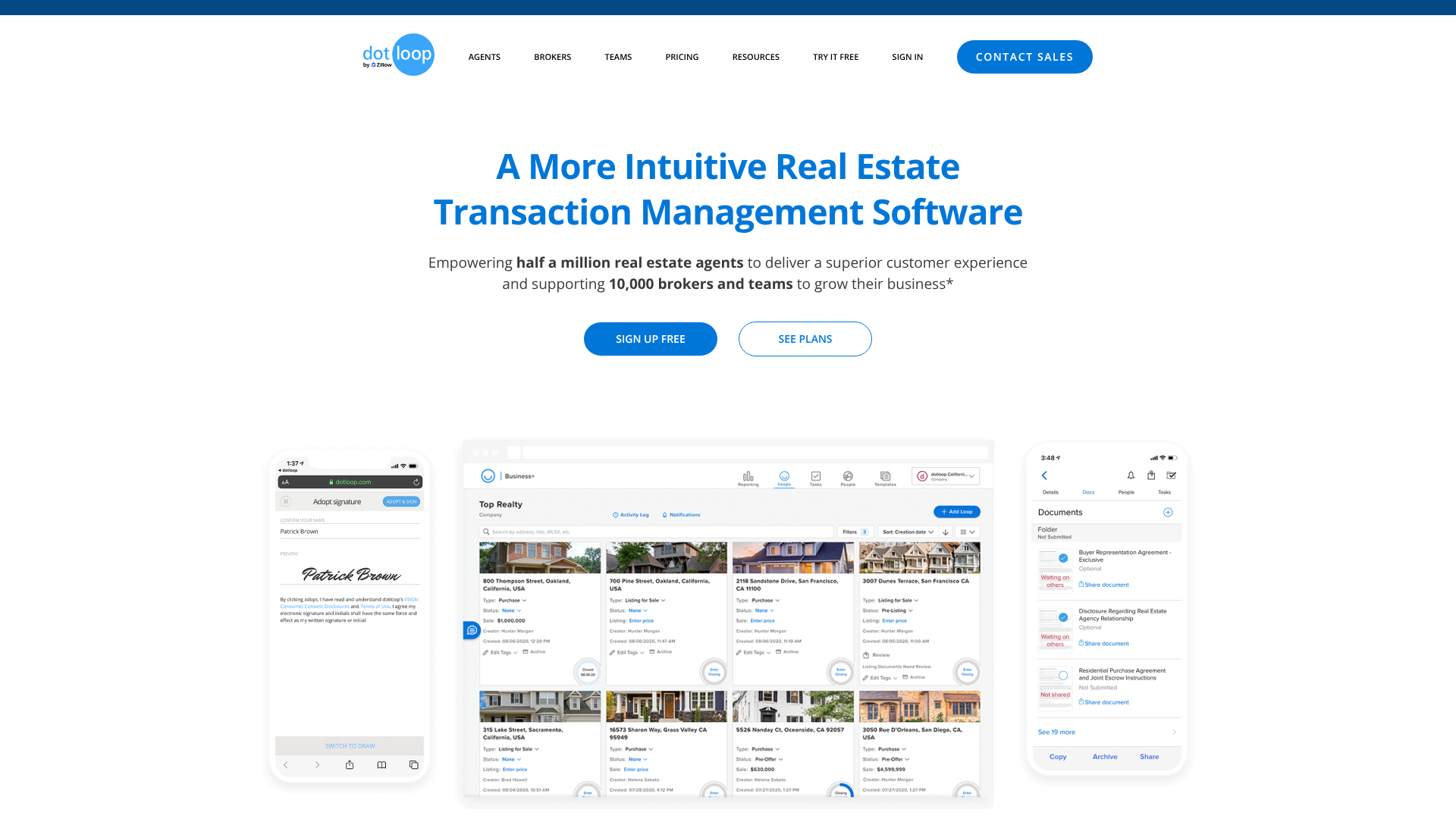
If you decide to create a free account, you'll find the Dotloop interface is clean and focused. While real estate agents have a more complex dashboard with many tools, the client view is simplified to prevent overwhelm. The central concept to understand is the "loop."
A loop is a digital workspace for a single transaction. For example, if you're buying a house at 123 Main Street, your agent will create a loop named "123 Main Street." Inside this loop, all documents, contacts, and tasks related to that specific property transaction are stored and managed. When you log in, you'll see a list of the loops you're a part of.
Once you click into a loop, you'll see a few key areas. The main section is the document list, where every contract, disclosure, and addendum is filed. Documents are often organized into folders for clarity, such as "Offer Documents" or "Inspection Reports." You can click on any document to view it. Next to the document list, you'll typically see a list of people involved in the transaction—your agent, the other party's agent, the transaction coordinator, and so on.
This makes it easy to see who has access to the loop. The interface is designed to be intuitive, giving you a clear overview of your transaction's progress without clutter.

Uploading Your Own Documents to a Loop
While your real estate agent will manage most of the paperwork, there may be instances where you need to add a document to the loop yourself. For example, you might need to upload a copy of your driver's license, a pre-approval letter from your lender, or proof of funds. Dotloop makes this process straightforward, provided your agent has given you the necessary permissions.
To upload a document, first navigate to the correct loop. Inside the loop, you'll see a button or link labeled "Add Document." Clicking this gives you a few options. The most common method is to browse your computer for a file. You can select a PDF, Word document, or image file from your computer to upload directly into the loop's document section.
Another useful option is emailing a document into the loop. Each loop has a unique email address. You can find this address within the loop details. By sending an email with an attachment to this specific address, the attachment will automatically appear as a new document inside the loop.
This is particularly handy if you receive a document via email on your phone and want to quickly add it to the transaction file without having to download and re-upload it manually.
How to Sign a Dotloop Document: The Complete Walkthrough
Now we get to the core task: learning how to sign documents in Dotloop. The platform guides you through each step, making it nearly impossible to miss a signature or initial. Follow this detailed walkthrough to get it done right the first time.
1. Open the Email and View the Document
The process begins with an email from your agent via Dotloop. The subject line will typically say something like "ACTION NEEDED" or "[Your Agent's Name] has shared a document with you." Open this email and look for a large button that says "VIEW DOCUMENT." Click it. This will open the document in a new browser tab. You don't need to log in or have an account for this step.
2. Click the "Start Signing" Button
Once the document loads, you'll see a banner at the top of the screen. In the upper-right corner, a prominent, often flashing blue button will say "START SIGNING." This button is your entry point into the guided signing process. Clicking it will automatically scroll the page down to the very first field that requires your attention, whether it's a signature, initial, or text box.
3. Adopt Your Signature and Initials
When you click on the first signature or initial field assigned to you, a pop-up window will appear titled "Adopt your signature." This is where you confirm your legal name and initials. Dotloop will pre-populate your name based on how your agent added you to the loop. Double-check that it's spelled correctly.
You have two options for your signature's appearance:
- Typed Signature: By default, Dotloop creates a stylized, cursive font based on your typed name. This is the most common and is legally binding.
- Drawn Signature: If you prefer, you can click the "Draw Signature" option. This allows you to use your mouse (or your finger on a touchscreen device) to draw your signature.
Once you're satisfied with your name and initials, click the "ADOPT AND SIGN" button. This action applies your newly adopted signature to the first field and prepares you for the next ones.
4. Navigate and Complete All Required Fields
After you adopt your signature, Dotloop's guided mode takes over. It will automatically jump you to the next required field. All you have to do is click on each highlighted box. Your adopted signature or initials will be applied instantly.
If you need to fill in a text box, simply type the required information. The system ensures you visit every single spot assigned to you, which is why it's so effective at preventing missed signatures.
Pro Tip: If you ever need to go back or sign out of order, you can scroll through the document manually. However, sticking with the guided "Start Signing" process is the best way to ensure you don't miss anything.
5. Finish and Share the Signed Document
Once you have clicked and filled every required field, the button in the top-right corner will change from "START SIGNING" to "FINISH SIGNING." This is the final and most important step. Clicking "FINISH SIGNING" saves your signatures, finalizes the document, and automatically notifies your agent that you've completed the task. If you close the browser tab without clicking this button, your signatures will not be saved or shared.
After finishing, you'll be given the option to create a free Dotloop account to save your documents or download a PDF copy for your records. It's always a good idea to download a copy.
How to Add Signature Fields to a PDF Yourself
This task is typically handled by real estate agents, but understanding how it works provides a fuller picture of the Dotloop platform. Sometimes, an agent needs to use a document that isn't an interactive template, such as a scanned contract or a custom addendum. In these cases, it's just a "flat" PDF, and the signature fields must be added manually.
To do this, an agent first uploads the PDF to the loop. Once opened, a toolbar appears at the top with various options. By clicking the "ADD" button, they can choose from a menu of fields to place on the document, including "Signature," "Initial," "Text Box," "Date," and "Checkbox." After selecting a field, they can drag and drop it to the correct location on the page.
The final step is assigning the field. Every field placed on a document must be assigned to a specific person in the loop. The agent clicks on the field they just added, and a menu allows them to assign it to the buyer, seller, or another party. This is how Dotloop knows whose signature to request for each specific spot.
This powerful feature turns any static PDF into a fully interactive, signable document.
Dotloop Document Signing on the Go: Mobile and Tablet Guide
In today's fast-paced world, you're not always at your computer when an important document arrives. Dotloop is fully optimized for mobile devices, allowing you to review and sign documents from your smartphone or tablet with the same level of security and ease as on a desktop.
The process on a mobile device is nearly identical. You'll start by tapping the "VIEW DOCUMENT" link in your email, which will open the document in your phone's web browser. The "START SIGNING" button will appear at the top, just as it does on a computer. Tapping it will begin the guided signing experience, jumping you from one required field to the next.
The main difference comes when you adopt your signature. On a touchscreen device, the "Draw Signature" option is particularly intuitive. You can use your finger or a stylus to create a handwritten signature that looks just like your own. Many people find this more personal and comfortable than using a mouse.
Once you adopt your signature, tapping each subsequent field will apply it automatically. When you've completed all fields, tap "FINISH SIGNING" to save and notify your agent.
For those who frequently use Dotloop, the company also offers a dedicated mobile app for both iOS and Android. The app provides a slightly more streamlined experience and includes features like push notifications to alert you instantly when a document needs your signature.

Interactive Forms vs. Flat PDFs: Understanding Dotloop Templates
When you open a document in Dotloop, you might notice that some forms are incredibly easy to fill out, with perfectly placed fields that even auto-populate your name, while others are more like static images. This difference comes down to whether you're working with an interactive template or a flat PDF.
Interactive templates are official forms provided by real estate associations and brokerages. These are not just PDFs; they are smart documents. The signature lines, initial boxes, dates, and text fields are already built-in and properly coded. When an agent uses one of these templates, Dotloop's autofill feature can automatically pull information—like your name, the property address, and the offer price—from the loop details and place it in the correct spots throughout the document.
This saves a massive amount of time and dramatically reduces the chance of typos or other errors.
On the other hand, a flat PDF is simply a digital image of a document. This could be a form that was scanned, a custom addendum written in a word processor, or a document from an outside party. These files have no built-in intelligence. As described earlier, an agent must manually add every single signature, initial, and text field to make it signable.
While Dotloop's tools make this possible, interactive templates are always preferred for their accuracy and efficiency.
Troubleshooting: Common Problems with Dotloop Document Signing
While the dotloop document signing process is generally smooth, you might occasionally run into a snag. Here are solutions to some of the most common issues users face.
Why can't I click the 'Start Signing' button?
If the "Start Signing" button is grayed out or you can't click on any fields, it's likely the document was shared with you for viewing purposes only. Agents can set different permissions for each person in a loop. They might share a document with you to review before enabling it for signatures. If you believe you're supposed to be signing it, the best course of action is to contact your agent and ask them to update your permissions.
The signature field is assigned to the wrong person. How do I fix it?
As a signer, you cannot change the assignment of a signature field. This is a security measure to ensure documents are signed by the correct parties. If you notice a field is incorrectly assigned (e.g., a spot for your signature is assigned to your spouse), you must contact the person who sent the document (your agent). They can quickly open the document, click on the field, and reassign it to the correct person.
I finished signing, but the agent says they didn't receive it. What happened?
This almost always happens because the final "FINISH SIGNING" button was not clicked. It's easy to close the browser tab after filling in the last signature box, assuming the process is complete. However, you must click that final confirmation button to save your work and trigger the notification to the other parties. If this happens, simply go back to the original email link, open the document again, and your previous signatures should still be there.
Just click "FINISH SIGNING" to complete the process.
Pro Tip: Always wait to see the confirmation screen that says "You're all done!" before closing your browser. This screen is your guarantee that the document has been successfully signed and shared.
Why am I getting an 'Invalid Link' error?
Each time an agent shares or re-shares a document, Dotloop generates a new, unique link. If an agent makes a correction and sends the document to you again, the link in the first email becomes invalid. If you get this error, check your inbox for a more recent email from Dotloop. Always use the link from the very latest email to ensure you are accessing the most current version of the document.
After the Signature: Organizing and Accessing Your Documents
Your involvement with Dotloop doesn't have to end once the final signature is in place. Properly managing your documents after signing is crucial for your personal records. The platform provides simple ways to keep everything organized and accessible.
The most immediate action you should take after signing is to download a PDF copy. After you click "Finish Signing," Dotloop will present you with a confirmation page that includes a "Download" button. Clicking this will save a flattened, non-editable PDF version of the fully executed document to your computer or mobile device. It's wise to save this in a dedicated folder for your home purchase or sale.
If you created a free Dotloop account, all your documents will remain stored securely within the transaction loop. You can log in at any time—even years later—to view or download your documents. This is incredibly useful if you ever need to reference your purchase agreement, closing disclosure, or other important paperwork. Your agent will eventually change the loop's status to "Archived," but you will still retain access to the documents you were given permission to see.
FAQ: Answering Your Dotloop Questions
How do you sign a dotloop document?
To sign a Dotloop document, first open the email you received and click the "View Document" button. Once the document loads, click the flashing "Start Signing" button in the top-right corner. This will take you to the first required field. Click on it to open the "Adopt your signature" window, where you can confirm your name and choose a typed or drawn signature style.
After adopting, Dotloop will guide you to each subsequent field; simply click to apply your signature or initials. When all fields are complete, click the "Finish Signing" button to save and share the document.
How do I electronically sign a document?
Electronically signing a document is a legally recognized process for showing intent to agree to the terms of a contract. Platforms like Dotloop facilitate this by creating a secure environment that complies with the U.S. Electronic Signatures in Global and National Commerce (ESIGN) Act. When you adopt your signature in Dotloop, you are creating a unique electronic representation of yourself.
Applying this signature to a document, combined with Dotloop's detailed audit trail that logs the time, date, and IP address of the signing event, creates a legally binding record that is often more secure and verifiable than a traditional ink signature.
Why can't I sign into dotloop?
There are a few common reasons you might have trouble signing in. First, ensure you are using the correct email address and password; password reset options are available. Second, remember that you don't need an account to sign a document sent to you. You might be trying to log in when you only have guest access.
If you've never set a password, you'll need to create an account first, which you can do after signing a document for the first time. Lastly, if you're part of multiple real estate deals, you might have created accounts with different email addresses, so double-check which email your agent invited to the loop.
How to put a handwritten signature on a document?
Dotloop provides a feature that allows you to create a signature that looks handwritten. In the "Adopt your signature" pop-up window, instead of accepting the default typed font, look for an option at the bottom that says "Draw Signature." Clicking this will open a blank canvas. If you're on a computer, you can use your mouse to draw your signature. If you're on a smartphone or tablet, you can use your finger or a stylus to draw it, which often produces a more natural-looking result.
Once you save your drawing, Dotloop will use this handwritten image for all signature and initial fields in the document.
Final Thoughts
Learning how to sign a Dotloop document is a simple skill that makes the complex process of a real estate transaction significantly easier. By replacing stacks of paper with a secure and efficient digital workflow, Dotloop helps ensure that your deal moves forward quickly and accurately. The guided signing process is designed to be foolproof, preventing missed signatures and keeping all parties on the same page.
Remember the key steps: use the link in your most recent email, click "Start Signing" to begin the guided process, adopt your signature, and most importantly, click "Finish Signing" to save your work. By following this guide, you can handle any document that comes your way with confidence and ease.
For real estate professionals seeking to bring this level of efficiency and security to their business, exploring a transaction management system is a logical next step. If you're looking to streamline your workflow and provide a better client experience, you can learn more about Dotloop and its features on their website.